Enable mailroom management and configure your pickup area in just a few quick steps.
Admin role required: Global Admin, Location Admin, Front Desk Admin and Delivery Manager

Feature availability varies by plan. Check What's in each plan on our pricing page to see if it's included in yours, or talk to our sales team about upgrading.
Mailroom Management is available on the Enterprise Plan. To get started, a Global Admin must first set up a delivery area in the Visitly Dashboard.
Adding A Delivery Area
1. Log in to your Visitly Dashboard.
2. Click Locations > Edit Location.
3. Select the Delivery Area tab.
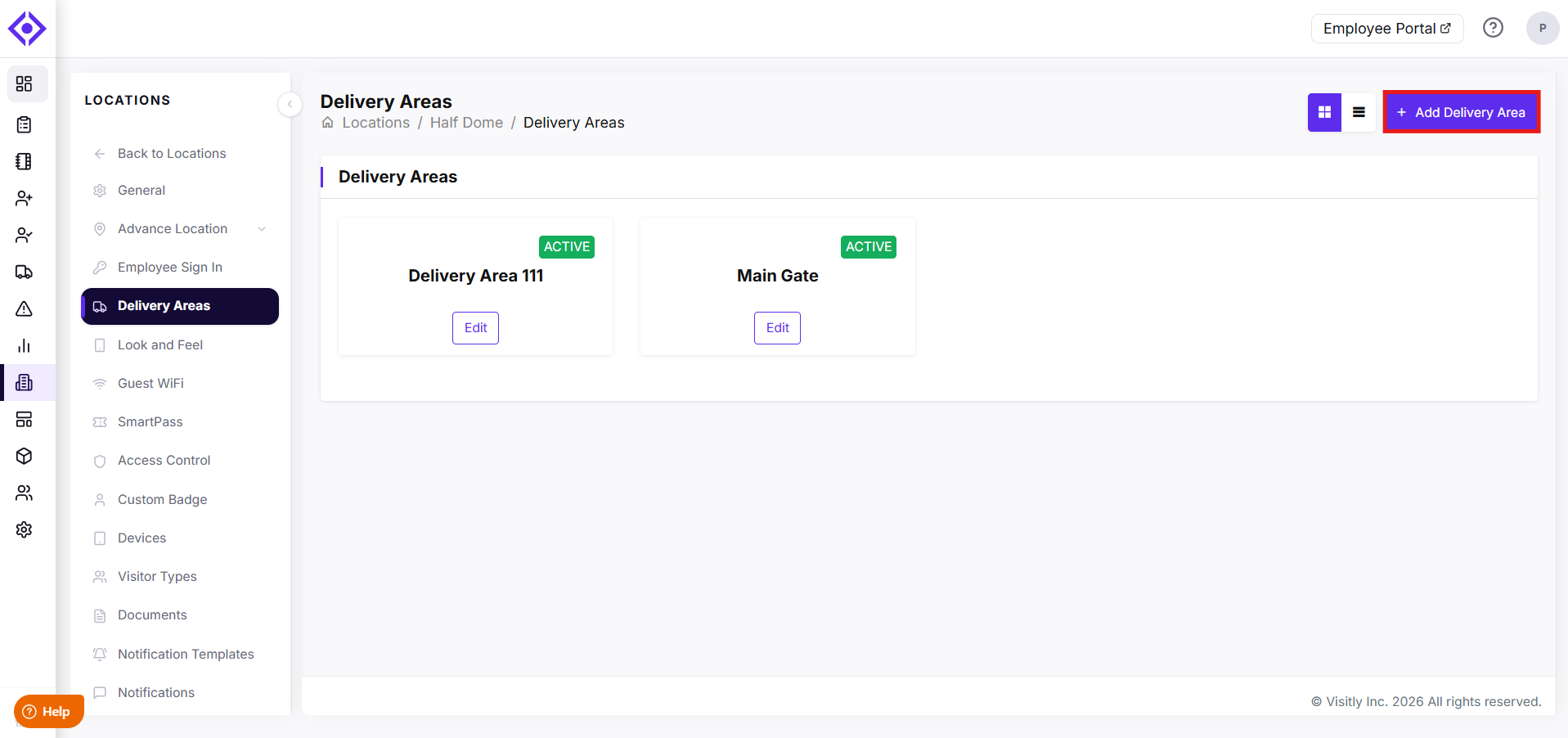
4. Click Add Delivery Area.
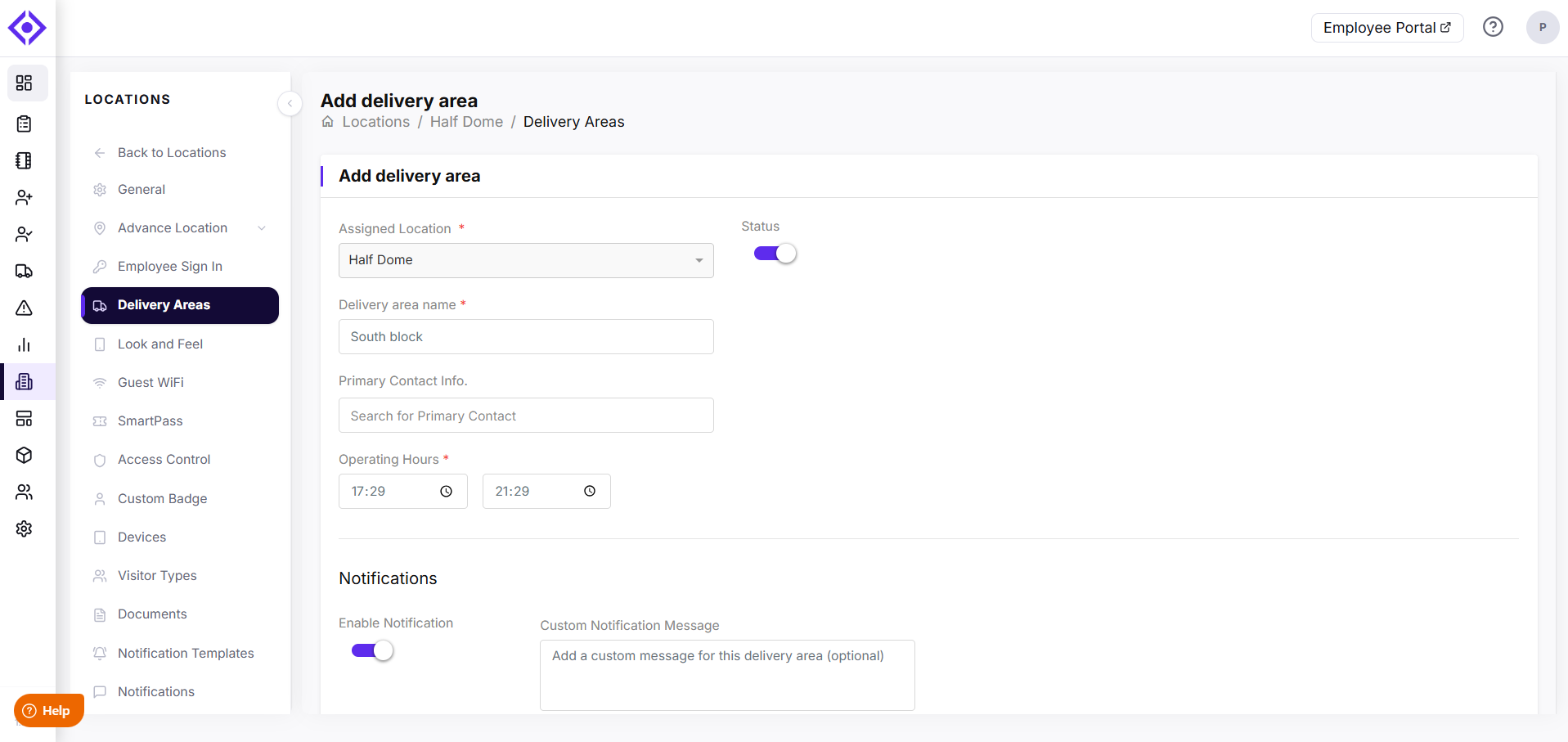
5. Enter the delivery area name and address.
6. Set delivery area operating hours (optional).
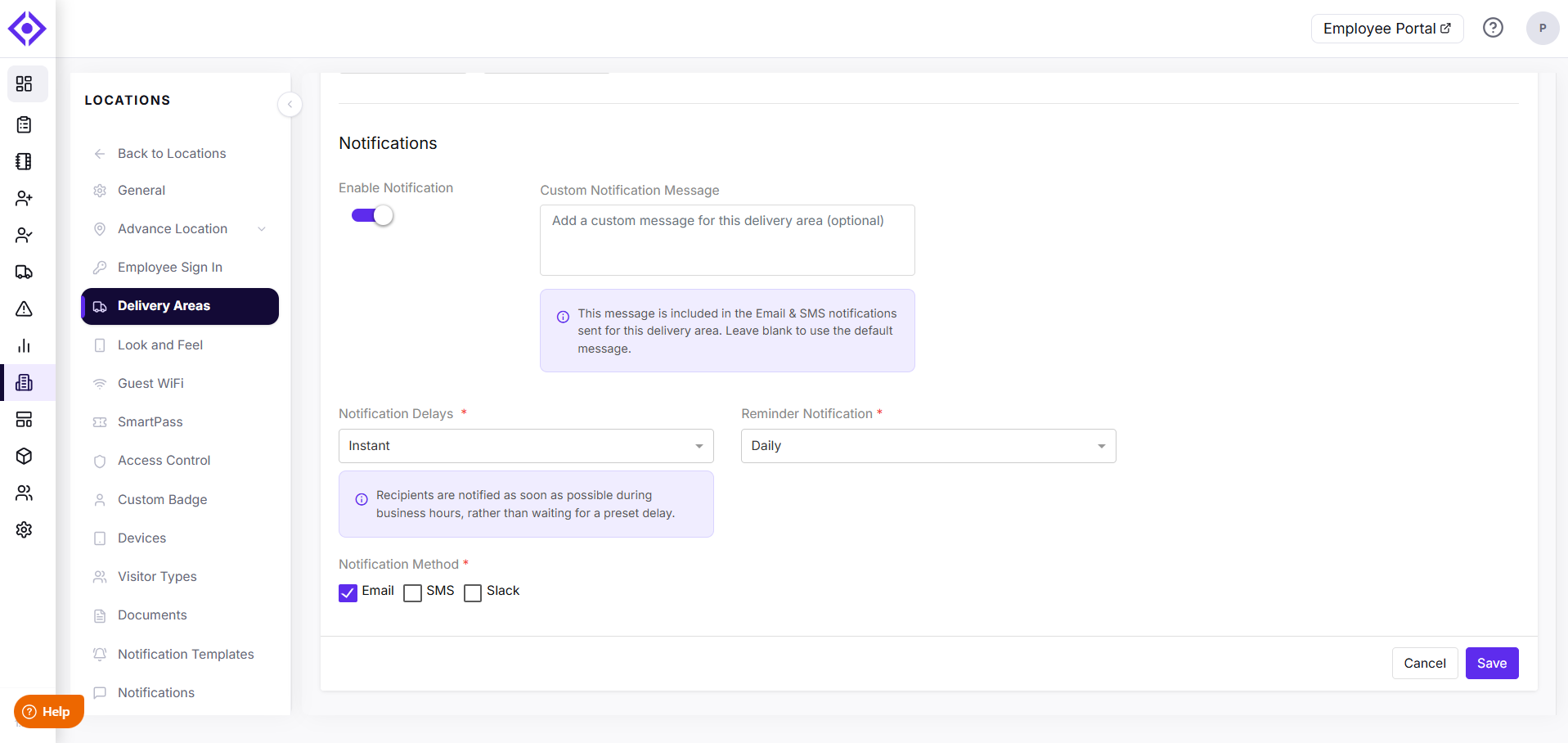
7. Enable delivery notifications and choose your preferred method:
Email
SMS (Note: SMS is an add-on feature)
Slack or Microsoft Teams (Enterprise Plan Only)
8. Click Save.
⭐ Note: You can also add delivery areas from the Deliveries > Manage Delivery Areas> Add Area.
Adding A Delivery Manager
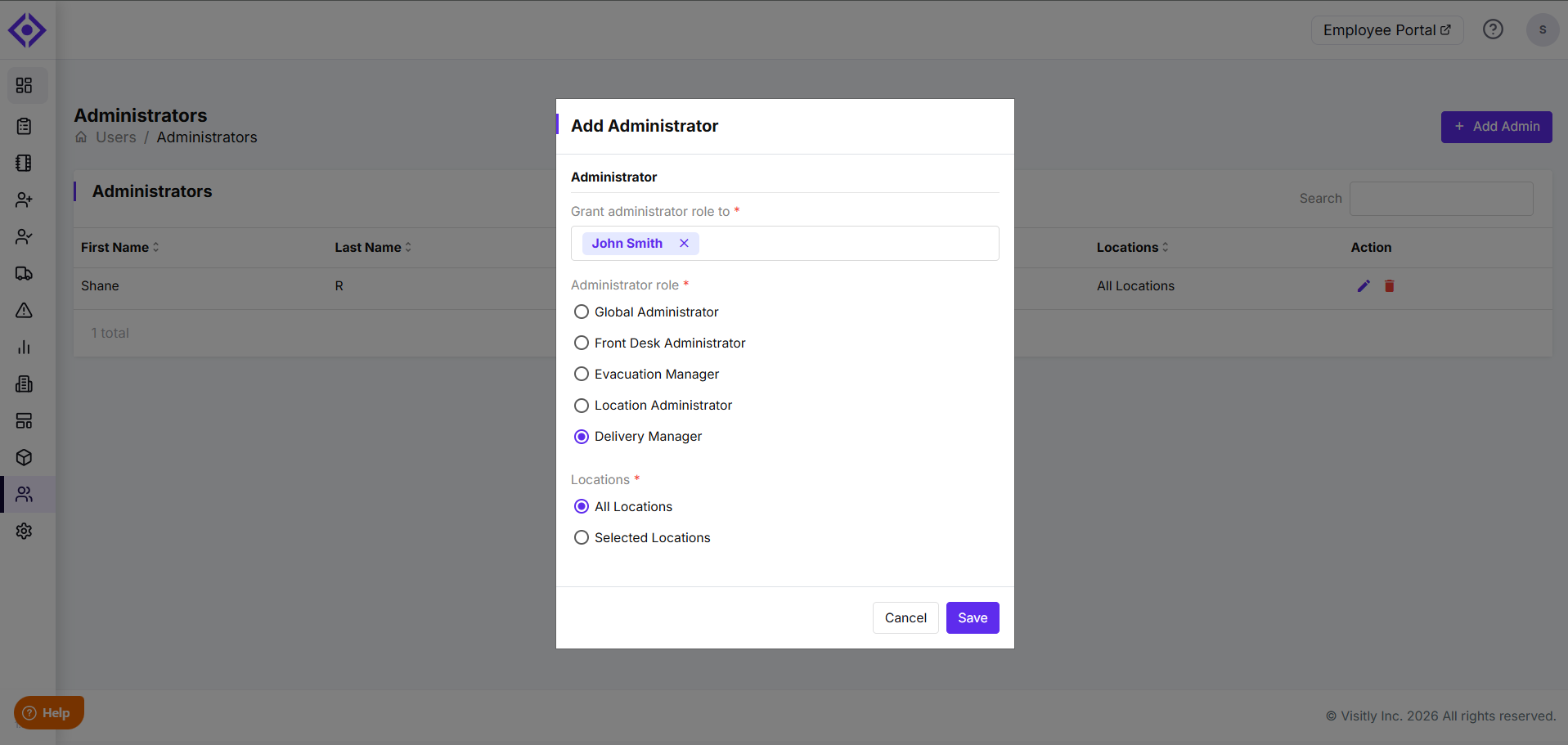
1. Go to Users > Administrator>Add admin in the Visitly Dashboard.
2. Add an admin with the Delivery Manager role.
The Delivery Manager can now scan and log packages using the My Visitly App.
Marking Packages As Picked Up
Once deliveries are scanned, employees can collect their packages and mark them as picked up:
Using the iPad Kiosk in the delivery area
Through the My Visitly App on their phone
That’s it! Your delivery process is now ready to go.
Need help? Contact the Visitly support team at support@visitly.io
Was this article helpful?
That’s Great!
Thank you for your feedback
Sorry! We couldn't be helpful
Thank you for your feedback
Feedback sent
We appreciate your effort and will try to fix the article