Admin role required: Global Admin, Location Admin and Front Desk Admin

Feature availability varies by plan. Check What's in each plan on our pricing page to see if it's included in yours, or talk to our sales team about upgrading.
Overview
The Visitor Log is your central record of every visit across your organization. From this view, you can search and filter visits, customize which columns appear, manage individual visits, and export records for reporting. By the end of this article, you'll know how to find the visits you need, read and customize the table, and take action on any visit directly from the log.
Accessing the Visitor Log
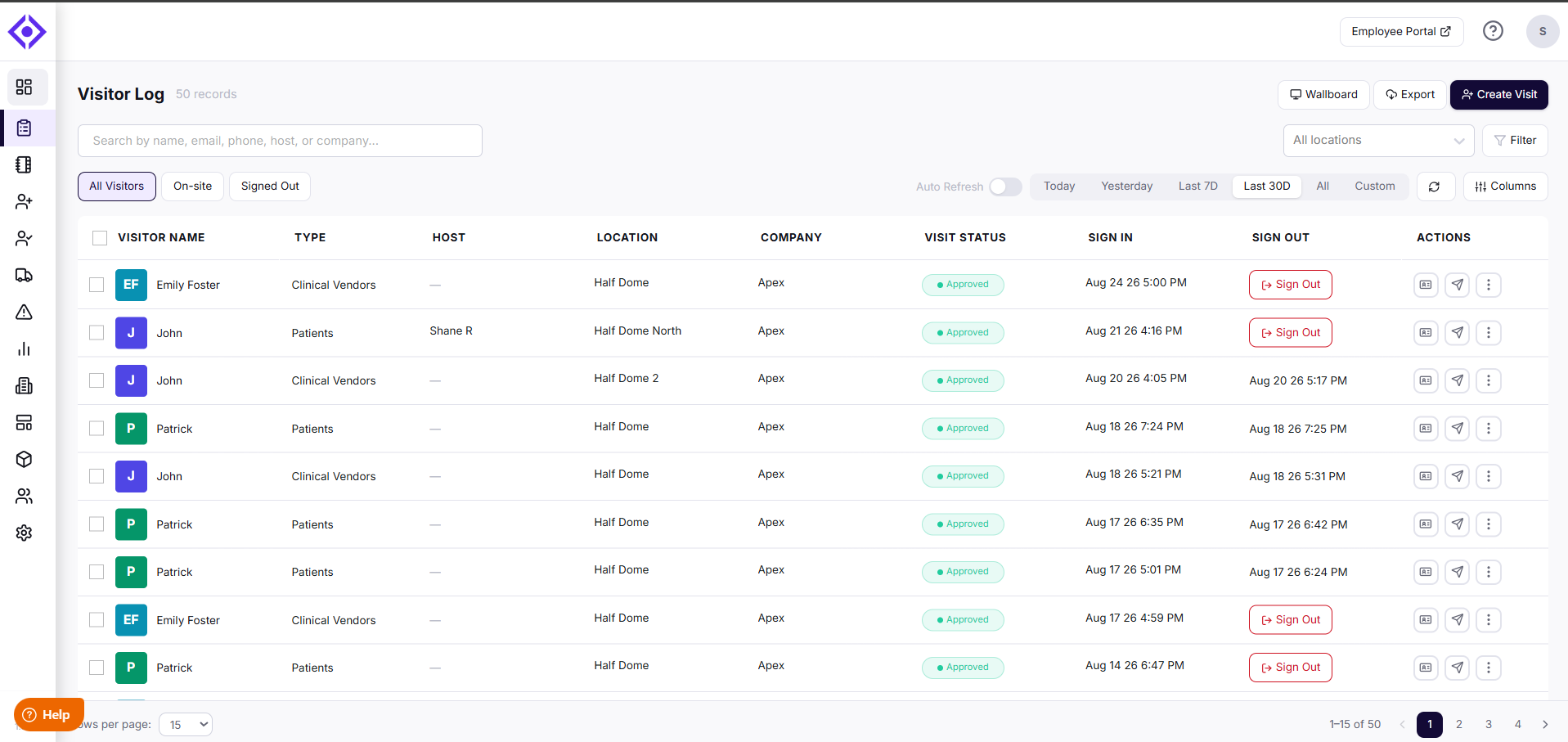
Select the Visitor Log in the left sidebar to open it. The header shows the total number of records matching your current filters (e.g., "56 records").
Finding the Visits You Need
The Visitor Log gives you several ways to narrow down exactly what you're looking for:
- Search bar — Search by name, email, phone, host, or company to instantly locate a specific visitor.
- All Locations filter — Focus on a single location, or view visits across every location in your account.
- Filter — Refine the list by location, document status, visitor state, approval status, or group name.
- All Visitors / On-site / Signed Out tabs — Switch between every visit on record, visitors currently checked in, and visitors who have already signed out.
- Date range shortcuts — Quickly view Today, Yesterday, Last 7D, Last 30D, All, or set a Custom range.
- Columns — Choose which columns appear in the table, so you only see the information that matters to you.
- Refresh — Manually reload the log to pull the latest data, or turn on Auto Refresh to have the log update automatically every 10 seconds — handy when you're keeping an eye on activity in real time.
Filtering the Visitor Log
Use Filter to narrow the log by location, document status, visitor state, approval status, or group. Filters work alongside your selected tab and date range, and the record count in the header updates to match your results.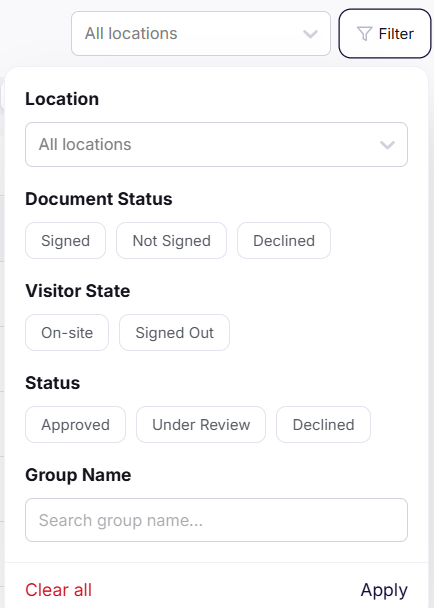
Applying Filters
- Select Filter at the top right of the Visitor Log to open the filter panel.
- Choose the criteria you want to apply from the options described below.
- Select Apply to update the log.
The Visitor Log now shows only the visits that match your selected filters.
Available Filters
- Location — Show visits from a single location, or keep All locations selected to view visits across your account.
- Document Status — Filter by whether the visitor Signed, Did Not Sign, or Declined the required documents, such as NDAs or visitor agreements.
- Visitor State — Show visitors who are currently On-site or who have Signed Out.
- Status — Filter by visit approval status: Approved, Under Review, or Declined. This is useful for finding visits that still need an approval decision.
- Group Name — Search for a group name to show only visitors who checked in as part of that group.
Clearing Filters
- Select Filter to open the filter panel.
- Select Clear all to remove every applied filter.
- Select Apply to return to the full log.
The Visitor Log now shows all visits for your selected tab and date range.
Customizing Columns
Select Columns to open Column Settings, where you can search for a specific field and check or uncheck any optional column — such as Type, Host, Location, Company, Group Name, Phone, Email, Visit Status, or ID Validation — to show or hide it in the table.
Use Select all to show every optional column at once, or Reset to default to revert to the standard view. Select Save to apply your changes.
Understanding the Table
Each row in the Visitor Log represents a single visit, with the following columns:
- Visitor Name — The visitor's name and avatar.
- Type — The visitor type associated with the visit (e.g., Clinical Vendors, Patients).
- Host — The employee hosting the visit, if one was assigned.
- Location — The location where the visit took place.
- Company — The visitor's company name.
- Visit Status — The current status of the visit (e.g., Approved).
- Sign In — The date and time the visitor checked in.
- Sign Out — The date and time the visitor checked out, or a Sign Out button if they're still on-site.
Managing a Visit
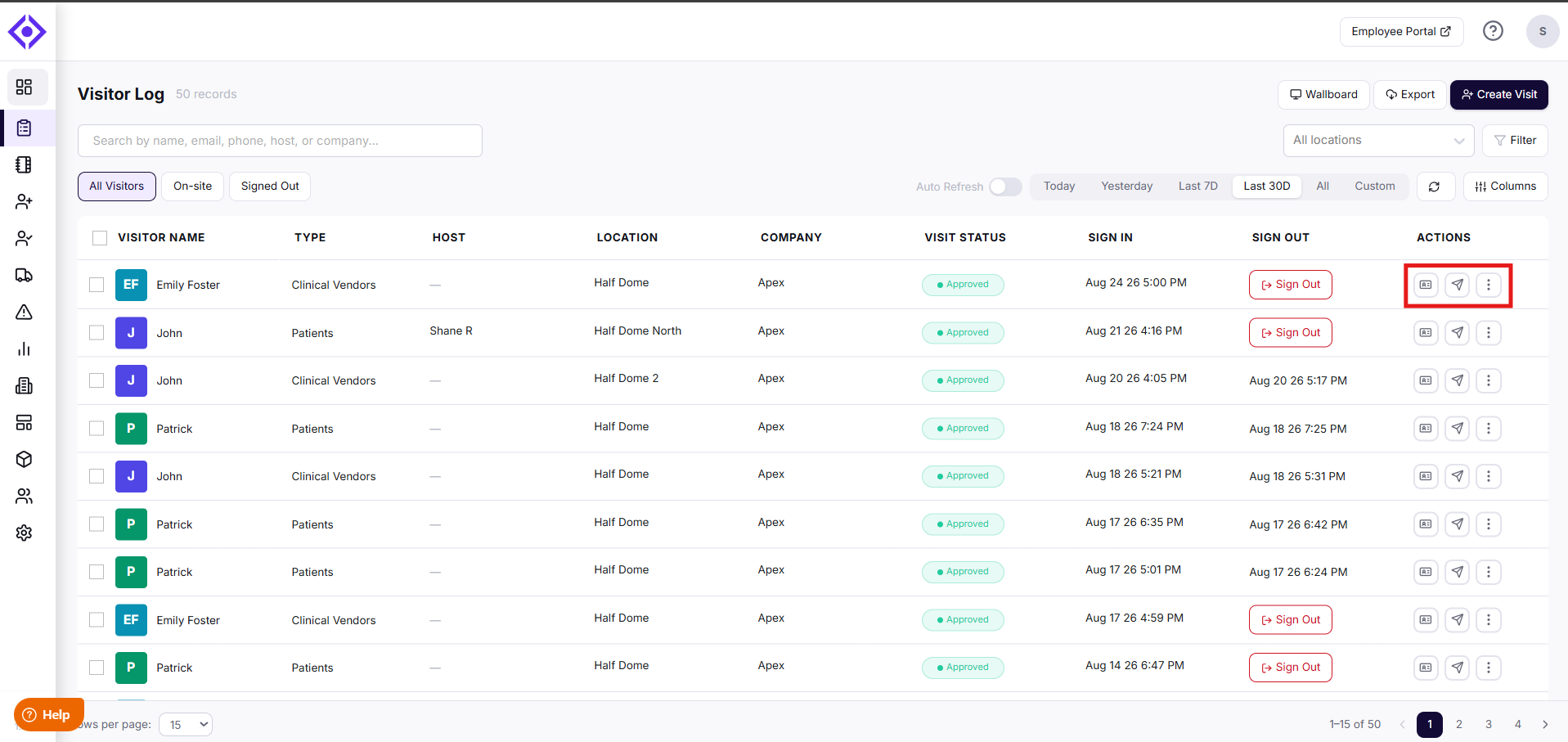
Use the Actions column on the right to manage any visit directly from the log:
- Print Badge — Print or reprint the visitor's badge.
- Invite Again — Resend an invitation to a visitor you've already invited before, without needing to look up or re-enter their details.
- More options (the three-dot menu) — Select Add to Watchlist to flag the visitor, or Notes to add or view notes on the visit.
- For visitors currently on-site, select Sign Out to check them out directly from the list.
Creating and Exporting Visits
At the top of the page, you'll also find:
- Create Visit — Log a new visit directly from the Visitor Log.
- Export — Download visitor records in CSV format for reporting or analysis. Exports under 2,000 records download directly; larger exports are emailed to you with a download link.
- Wallboard — Open a wallboard-friendly view of visitor activity, ideal for displaying on a shared screen at your front desk. Read more.
Good to Know
- Select the checkboxes next to visitor names to select multiple visits at once for bulk actions.
- Invite Again isn't unique to the Visitor Log — you'll find the same capability wherever you view a visitor, including the Visitor Directory (labeled Invite Visitor there), Pre-Registration Details, and the Employee Portal, for both upcoming and already-checked-in visitors.
Troubleshooting
I can't find a visit I'm looking for.
Confirm the All Locations filter isn't limiting your results to a single location, and check that your selected tab (All Visitors, On-site, or Signed Out) and date range include the visit you're searching for. Try searching by an alternate field, such as email or company, if the visitor's name doesn't return a match.
My exported CSV never arrived.
Exports under 2,000 records download directly to your browser, so check your downloads folder first. For larger exports, allow a few minutes for the email to arrive, and confirm the email wasn't filtered into a spam or junk folder.
My column selections aren't saving.
Make sure you select Save after making changes in Column Settings — changes aren't applied automatically when the modal is closed. If the issue continues, try refreshing the page and reapplying your selections.
The log isn't updating with new activity.
Select Refresh to manually pull the latest data, or turn on Auto Refresh to have the log update automatically every 10 seconds. If records still seem out of date, confirm you're viewing the correct location and date range.
Need help? Contact the Visitly support team at support@visitly.io
Was this article helpful?
That’s Great!
Thank you for your feedback
Sorry! We couldn't be helpful
Thank you for your feedback
Feedback sent
We appreciate your effort and will try to fix the article