Learn how to add, update, and manage locations in Visitly.
Admin role required: Global Admin and Location Admin

Feature availability varies by plan. Check What's in each plan on our pricing page to see if it's included in yours, or talk to our sales team about upgrading.
Adding A Location
1. Go to Locations from your Visitly Dashboard.
2. Click Add Location in the top-right corner.
3. Complete the fields in the Create Location pop-up.

⭐ Tip: Copy settings from an existing location to clone its configurations including look and feel, visitor types, document templates, and notifications. You can adjust these settings after adding the new location.
4. Click Save.
Updating General Location Information
Configure how visitors and employees are managed at each location. These settings control sign-in methods, security checks, and access options for your site.
1. Go to Locations from the Visitly Dashboard.
2. Select Edit on the location you wish to update.
3. Make any necessary updates to the fields provided.
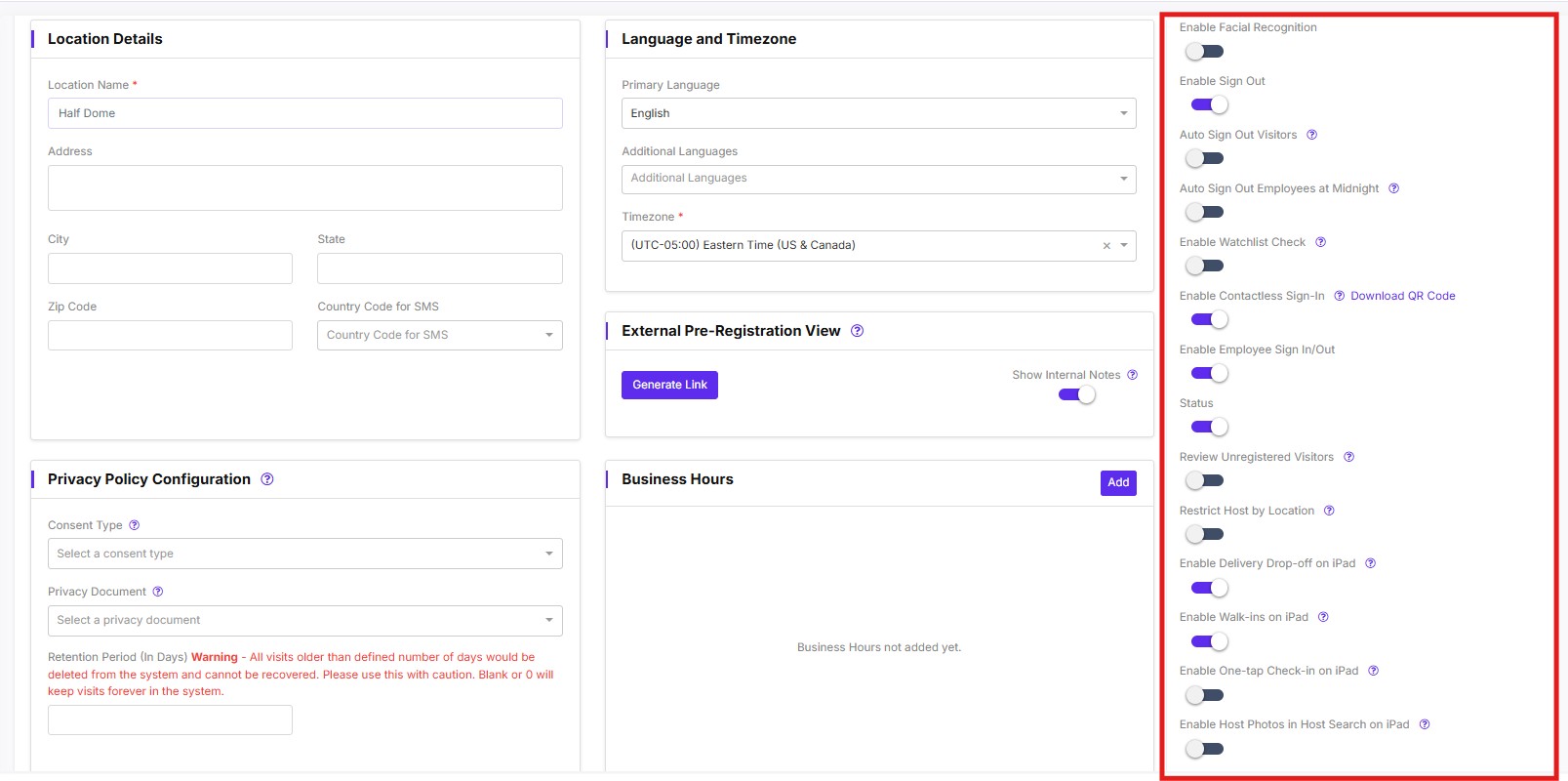
- Enable facial recognition: Enables camera-based identity verification at sign-in kiosks. When active, visitors and employees can be recognized automatically without manual check-in.
- Enable sign out: Allows visitors and employees to sign out when leaving the premises. Disabling this removes the sign-out option from kiosks, which may be useful for one-way entry flows.
- Auto sign out visitors: Automatically signs out all active visitors at a set time each day — defaulting to midnight local time. This keeps your visitor log accurate without requiring manual action at the end of the day.
- Auto sign out employees at midnight: When enabled, employees who are still signed in at midnight will be automatically signed out. This is useful for tracking accurate on-site hours without relying on staff to manually sign out each shift.
- Enable watchlist check: Screens visitors against a configured watchlist during sign-in. If a match is found, the relevant host or admin is alerted immediately, allowing your team to respond before entry is granted.
- Enable contactless sign-in: Lets visitors sign in by scanning a QR code with their phone, avoiding any need to touch the front desk iPad. Use the "Download QR Code" link to print or display the code at your entrance.
- Enable employee sign in/out: Shows the employee sign-in flow on the location's iPad. When disabled, the kiosk only handles visitor sign-ins, which can simplify the interface for locations where employee tracking is managed separately.
- Status: Controls whether this location is active in your account. Disabling the status will pause all sign-in activity at the location without permanently removing its configuration or historical data.
- Review unregistered visitors: Flags visitors who are not pre-registered for host or admin review before they are fully signed in. This adds an approval step that gives your team visibility over unexpected arrivals.
- Restrict host by location: Limits the host selection list to only users assigned to a specific location. This prevents visitors from selecting hosts from other sites, which is especially helpful for organizations with multiple offices. For a full walkthrough, see Restrict hosts by location.
- Enable delivery drop-off on iPad: Adds a delivery log option to the iPad kiosk, so couriers and delivery personnel can record package drop-offs without needing to go through the full visitor sign-in flow.
- Enable walk-ins on iPad: Allows visitors who were not pre-registered to sign in directly at the iPad as walk-ins. Disabling this restricts sign-in to invited guests only, giving you tighter control over who can enter the location.
- Enable Host Photos in Host Search on iPad: Displays each host's photo next to their name during sign-in, so visitors can quickly confirm they've picked the right person — even with similar or common names.
Toggle specific features on or off using the options on the right side of the screen.
For Privacy Documents, ensure the document you want to select has been created beforehand. To do so, visit Updating Document Templates.
⭐ Note: For the Retention Period, visits older than the set retention period will be permanently deleted. Leave blank or set to "0" to keep records indefinitely. Use this setting carefully.
4. Click Save to apply changes.
Updating Location Settings
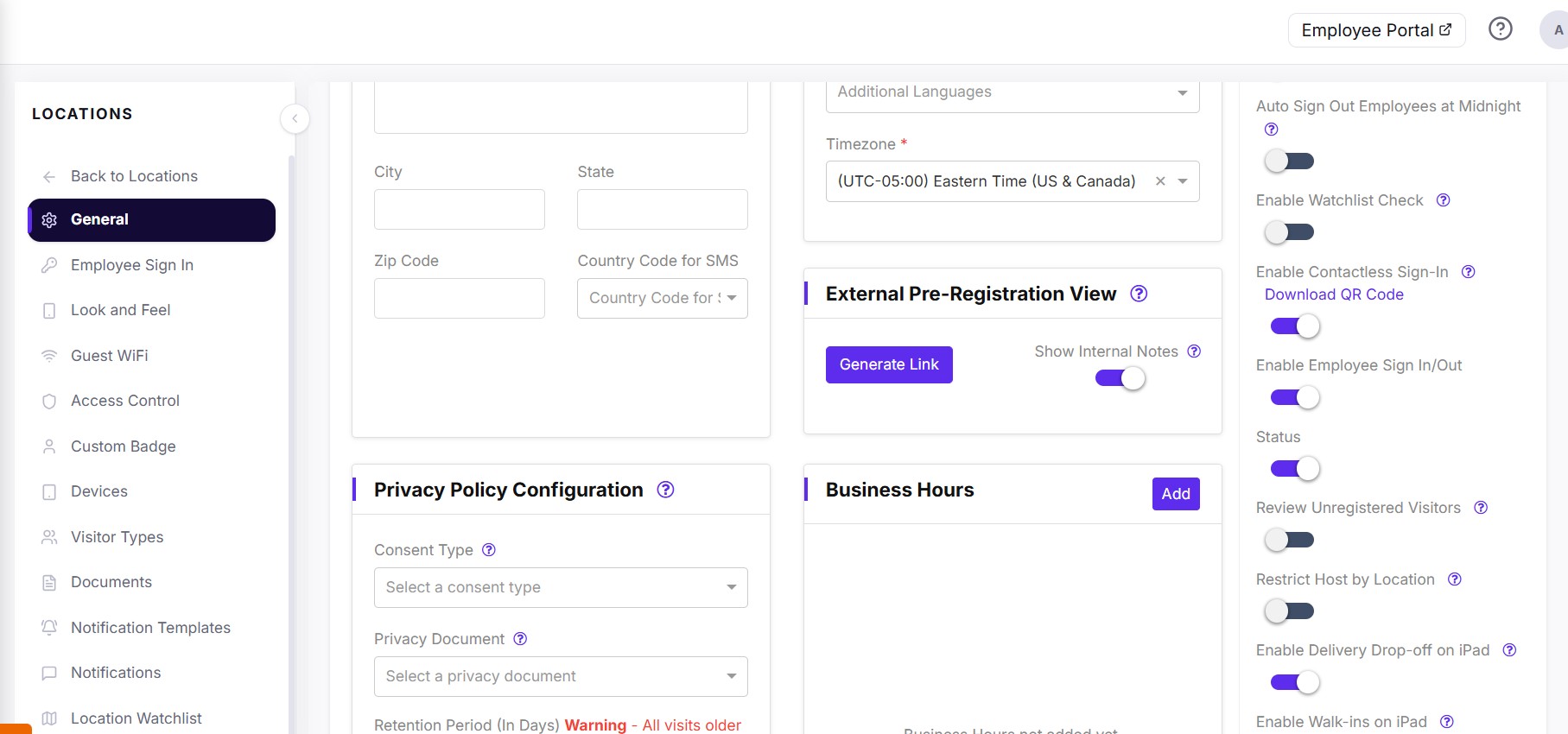
To access and update location settings, go to the Locations page. Use the left panel to manage specific settings for each location.
Was this article helpful?
That’s Great!
Thank you for your feedback
Sorry! We couldn't be helpful
Thank you for your feedback
Feedback sent
We appreciate your effort and will try to fix the article